
iOS App · Personal Project
TrackFlow
An expense tracker built around how I actually think about money — fast to log, honest about patterns, and out of the way the rest of the time.

Screenshots
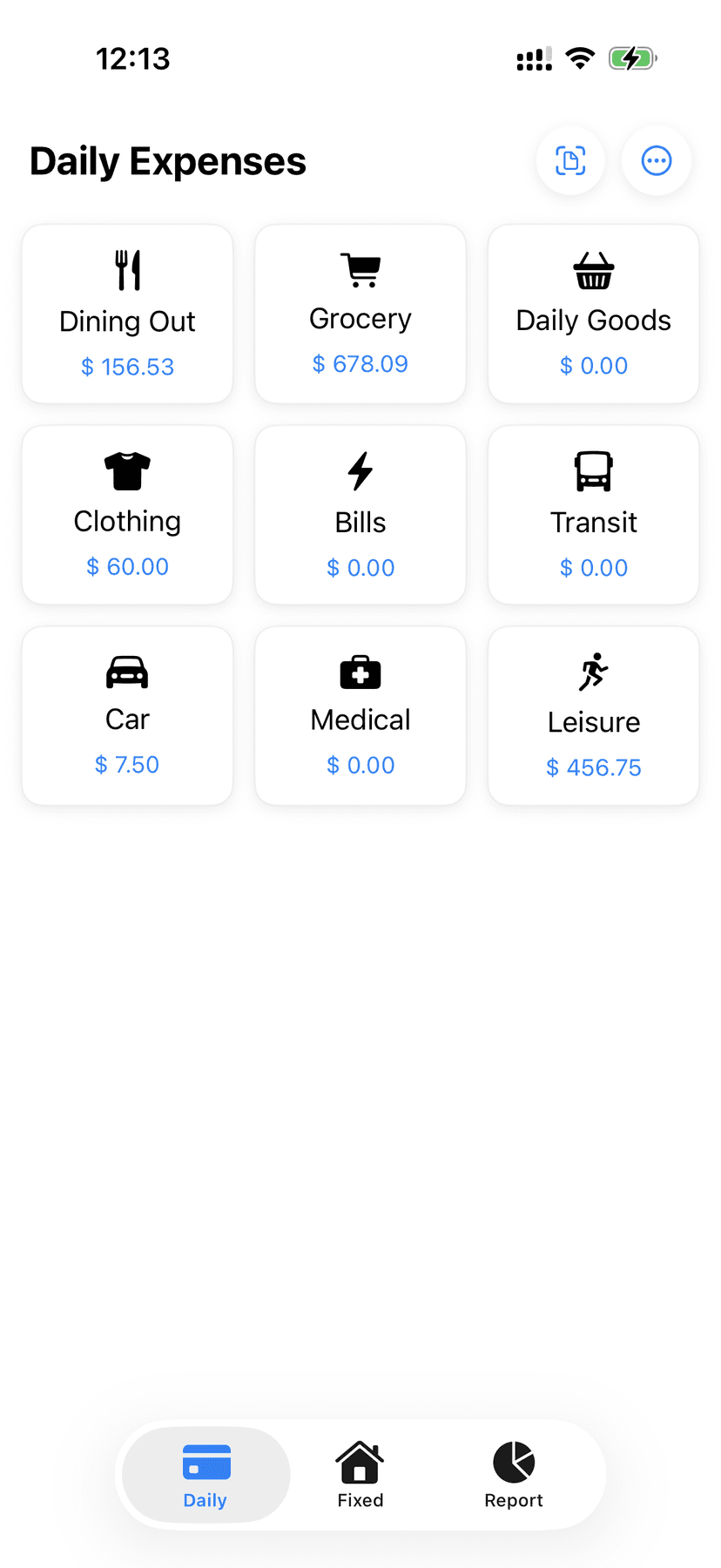
Daily Expenses
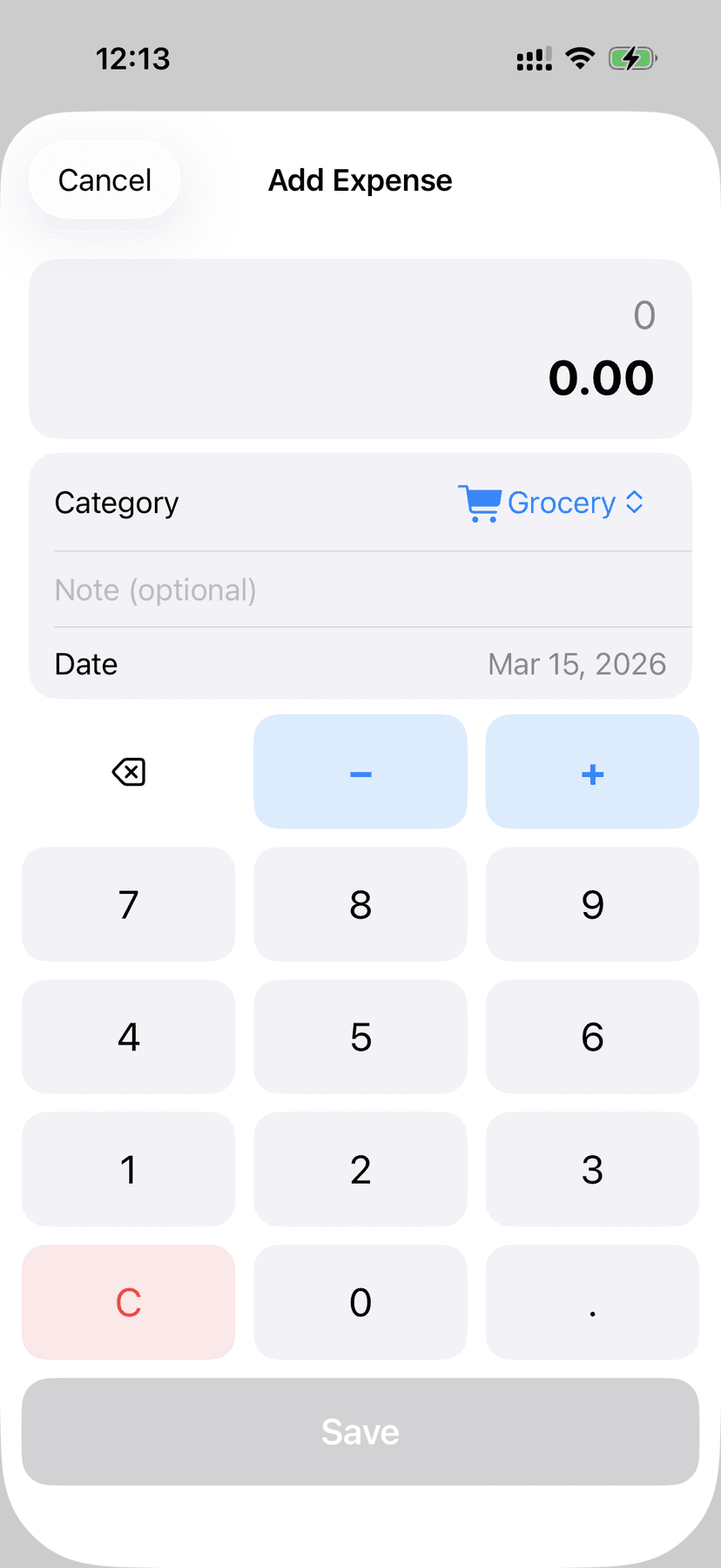
Add Expense
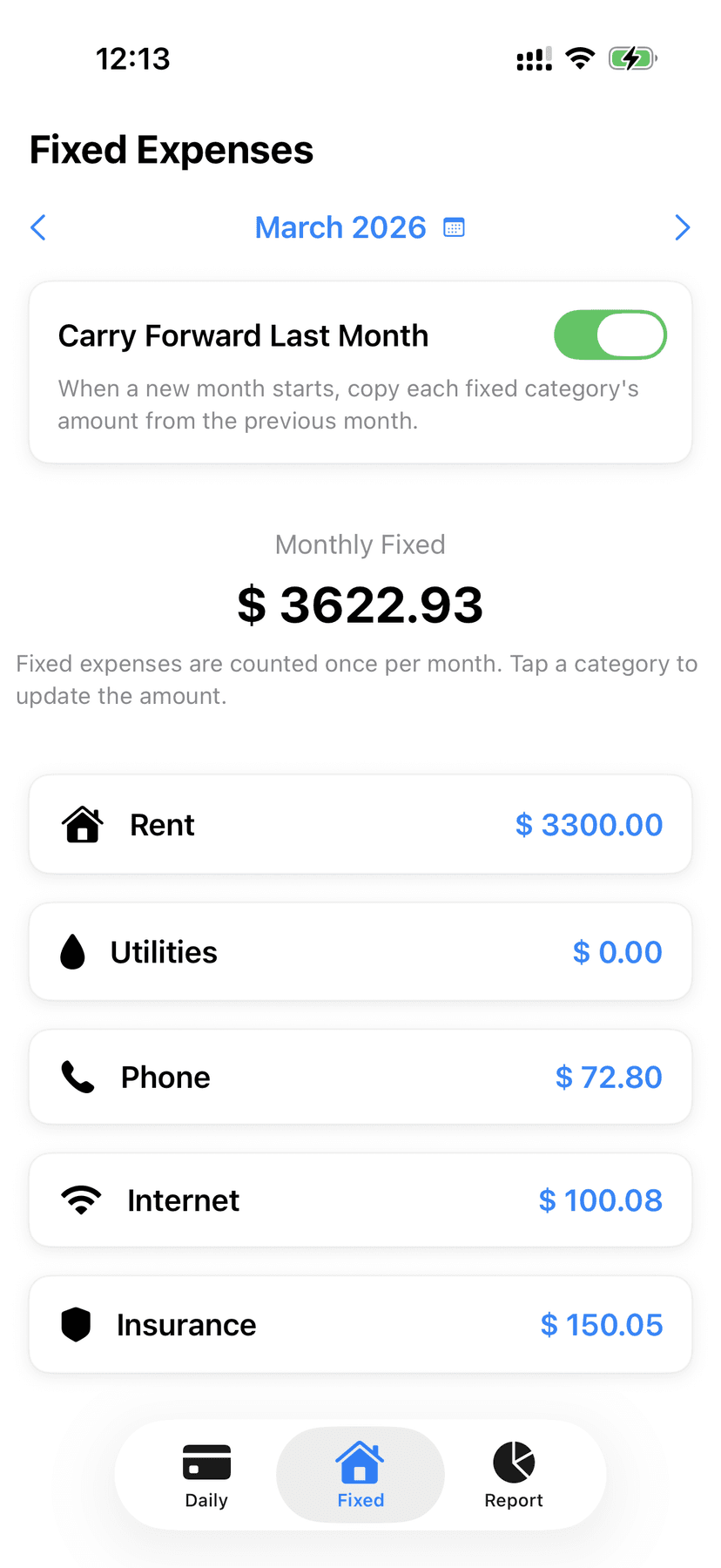
Fixed Expenses
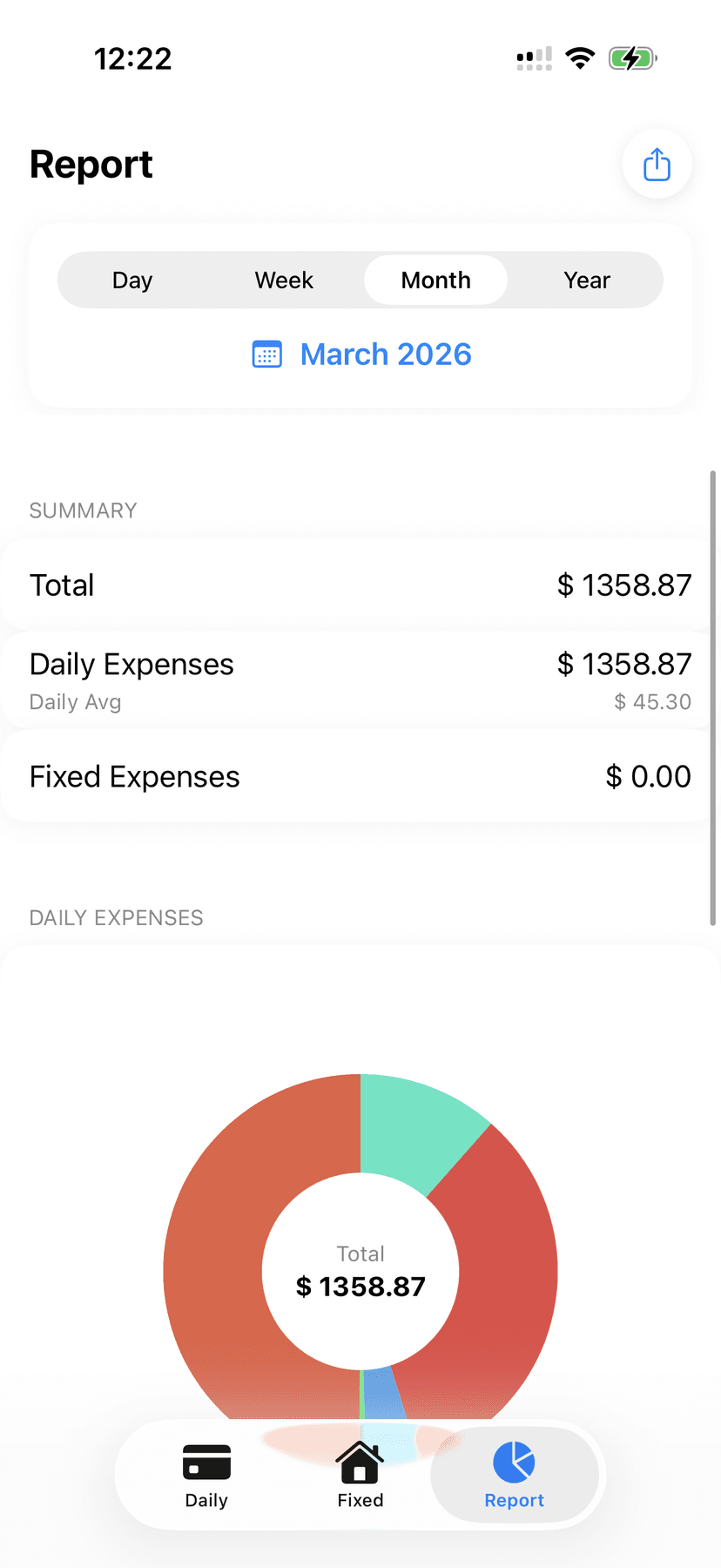
Reports
Why I Built It
"Most expense apps try to do too much."
They surface charts you never look at, demand categories that don't match how you spend, and make the core action — logging a purchase — slower than it needs to be.
TrackFlow is built around one principle: capture first, understand later. The home screen is a grid of categories. You tap one, enter the amount, and you're done. Under three seconds.
The reporting is intentionally minimal — enough to see where the money went, not enough to turn into another thing you have to manage.
Features
Two-track budgeting
Separate daily spending from fixed monthly costs. Know your variable burn rate without your rent muddying the picture.
Built-in calculator
Enter amounts as expressions — type 12.5 + 8 and TrackFlow does the math. No switching apps, no mental arithmetic.
Receipt scanner
Point your camera at a receipt. On-device OCR (Apple Vision) reads the total and pre-fills the amount field.
CSV import & export
Bring in historical data from any spreadsheet. Export your full expense history as a CSV file to share or archive.
Auto-carry fixed expenses
Fixed bills that don't change month to month? Enable auto-carry and TrackFlow rolls them forward automatically.
Spending reports
Donut charts by category. Day, week, month, or year views. Drill into any category to see individual entries.
Home screen widget
See your monthly total at a glance — small or medium size, updates the moment you log an expense.
iCloud sync
Data syncs privately across your Apple devices via CloudKit. Falls back to local storage if iCloud is unavailable.
Stack
Language
Swift
UI
SwiftUI
Storage
SwiftData + CloudKit
OCR
Apple Vision
Widget
WidgetKit
Platform
iOS 17+
How to Use
01
Log a daily expense
Go to the Daily tab. Tap any category tile. Enter the amount using the built-in calculator — expressions like 12 + 8 work. Add an optional note, confirm the date, and tap Save. Done in under ten seconds.
02
Track fixed monthly costs
Switch to the Fixed tab. Navigate to the current month and tap any category to enter that month's amount. Enable Auto-Carry to roll last month's figures forward automatically.
03
Scan a receipt
Tap the receipt scanner icon (top right of the Daily tab). Point your camera at a receipt — Apple Vision reads the total and pre-fills the amount. Select a category and save.
04
Import historical data
Tap ⋯ → Download CSV Template to get the correct format. Fill it in with past expenses, then tap ⋯ → Import Data to load them all at once.
05
Read your reports
Open the Report tab. Choose a time range — day, week, month, or year. Tap any category in the donut chart to drill into individual entries. Tap the share icon to export as CSV.
06
Add the widget
Long-press your home screen → tap + → search TrackFlow. Add the small or medium widget. It shows your current month's total and updates instantly when you log an expense.
Privacy
Data collected
TrackFlow does not collect, transmit, or share any data with the developer or third parties. No analytics. No advertising. No tracking.
iCloud sync
Expense data is synced privately across your Apple devices using CloudKit (iCloud private database). This data is accessible only to you and is governed by Apple's iCloud privacy policy. If iCloud is unavailable, the app falls back to local storage automatically.
Camera & Photo Library
Camera and photo library access is used solely for the receipt scanner feature. Images are processed entirely on-device using Apple Vision. No images are stored or transmitted.
Data deletion
All data can be deleted at any time via Settings → Reset Data within the app. Deleting the app removes all local data. iCloud data can be managed via iOS Settings → [Your Name] → iCloud → Manage Account Storage.
App Store Privacy Label
Available on the App Store. Built and maintained for daily personal use. SwiftData persistence, CloudKit sync, widget integration, and full CSV import/export.